


You hit play on a video, maybe footage from a family event, a client interview, or a security recording you actually needed, and something’s off. The screen freezes. The audio keeps going while the picture doesn’t move. Or the file just won’t open at all, and your player throws up some vague error instead of the footage you were expecting.
It’s a particular kind of annoying because the file is right there. It exists, it’s taking up the space it’s supposed to on your drive, and by every outward sign it should just work. Figuring out what’s actually wrong inside that file is the first step toward knowing whether you can get it back.
What’s Actually Going Wrong in There
A video file isn’t one solid chunk of data the way you might picture it. It’s a container format, MP4, MOV, AVI, whatever, holding compressed video and audio streams, plus an index that tells your player where each frame lives and in what order to play them. Some formats call this index a moov atom, but the concept’s the same everywhere: it’s the map, and the footage is the territory.
When people say a video is corrupted, one of two things usually happened. Either that map got damaged or never finished being drawn, so your player has no idea how to read footage that’s otherwise fine, or the actual video data got scrambled or partly overwritten, which is the tougher problem since the content itself took the hit, not just the directions for finding it.
What Your Symptoms Are Actually Telling You
If a video won’t open at all and just throws an error immediately, that’s usually a missing or broken index. The player literally doesn’t know where to start.
If it plays fine for a stretch and then freezes or turns into a blocky mess partway through, that points somewhere else. The index is probably okay, but the data itself got damaged somewhere in the middle, often because of a failing card or an interrupted write.
Sound with no picture, or picture with no sound, usually means one of the two streams got corrupted while the other made it through okay, since audio and video are actually stored separately inside the same file.
And if the file size looks wrong, like a few kilobytes when it should be several gigabytes, that almost always means recording got cut off before it finished, and most of the footage never got written to begin with.
Why This Keeps Happening
A handful of causes come up again and again, and they matter because each one points toward a different outcome.
Interrupted recordings are probably the most common one I’ve seen. Power dies mid-shoot, someone pulls the card too soon, an app crashes while filming. Since the index only gets finalized once recording stops properly, an interruption leaves footage sitting there with no instructions for reading it back. This is actually one of the more fixable situations, since the footage itself is usually untouched. It’s an organization problem more than anything.
Then there’s the storage itself giving out. SD cards and drives wear down over time, and if a video happens to land on a sector that’s starting to fail, you can end up with chunks missing or replaced with garbage, even though you didn’t do anything wrong recording or handling the file.
Interrupted transfers cause their fair share of headaches too. Moving video from a camera to a laptop, or a phone to the cloud, takes real time when files are large, and anything that breaks the connection midway, a loose cable, a phone falling asleep, a laptop losing power, leaves you with a partial file. Sometimes your computer even tells you the transfer finished when it didn’t.
And conversions or edits can go sideways. Compressing a video, switching formats, or editing in an app that crashes mid-save can leave you with a file that looks saved but isn’t actually complete inside. This one stings extra if the original got overwritten in the process, since there’s nothing to fall back on.
Why a Regular File Tool Won’t Cut It
It’s tempting to treat a broken video like any other damaged file, but the layered structure that makes video work in the first place, container, codec, index, separate streams, is exactly what trips up general file recovery tools. Software built for recovering deleted photos or patching up documents usually has no idea how to interpret a codec or rebuild a video’s index, and pushing a generic fix onto a video file can sometimes make things worse instead of better.
That’s really the argument for using something made specifically for this. Stellar Repair for Video is built around how these files actually fail rather than treating them as generic data. When a recording got interrupted, it can rebuild the missing index, sometimes using a short healthy clip from the same camera as a reference so it understands the correct structure. When the damage comes from a bad sector or a broken transfer, it scans the video stream itself, figures out what’s still intact, and reconstructs a working file around that instead of trying to force-read the whole thing as one piece.
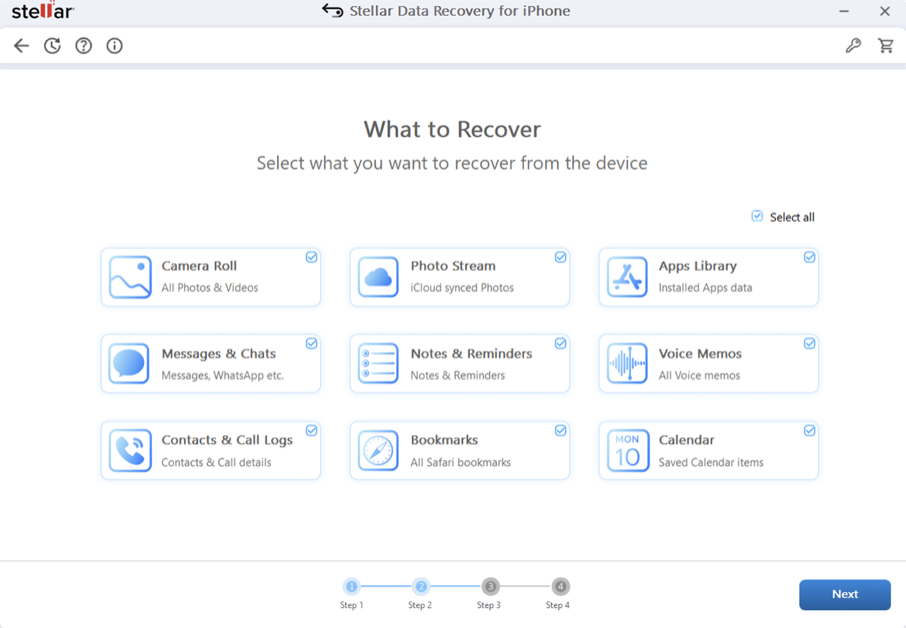

It covers the formats you’re actually likely to run into, MP4, MOV, AVI, from phones, DSLRs, drones, action cams, and it handles multiple files at once if you’ve got a batch of damaged clips from the same shoot or the same failing card, so you’re not doing this one file at a time. And you get to preview the result before saving anything, which matters more than it sounds. You want to know the fix worked before you commit to it, not after.
What It Can’t Fix
Worth being upfront about this part too. If the video data itself is genuinely gone, not disorganized, not partially damaged, but actually destroyed, no software brings that back. Nothing can invent frames that don’t exist anymore. Severe physical damage to a drive, or footage that’s been recorded over, is past what any repair tool can do.
That said, most real corruption falls into the interrupted-recording, bad-sector, or failed-transfer buckets, and in all three, the footage underneath is usually still mostly there. Those are the situations where a tool like this actually earns its keep.
What To Do the Moment You Notice
Don’t keep mashing play or opening the file in five different players hoping one magically works. That wastes time and doesn’t help. If the videos on a card or drive, stop using that device for anything else right away, since continuing to shoot or save to it risks overwriting the exact data you’re trying to save, especially if a failing card is the culprit. Make a copy of the broken file if you can, so you’re working on a duplicate instead of your only shot. Then run it through video repair software built for this, not a general file recovery tool, and check the preview before deciding it worked.
Cutting Down the Odds of This Happening Again
A few habits go a long way. Let recordings finish properly instead of yanking a card or closing an app mid-save. Buy storage from brands you trust and retire cards or drives the moment they show trouble, since one that’s glitched once tends to do it again. Keep transfers on stable power and don’t unplug anything until the copy confirms it’s done. And when you’re converting or editing footage, save to a new file rather than writing over the original, at least until you’ve checked the new version plays all the way through.
A corrupted video feels like the end of the road in the moment, mostly because the error messages are so blunt and unhelpful. But underneath “this file cannot be played” there’s almost always a specific, understandable reason, and in most cases the footage survived even though the file around it didn’t. Knowing what actually went wrong, and having the right tool for that particular kind of damage, gets you most of the way to getting it back.
